Use the Accessibility Checker
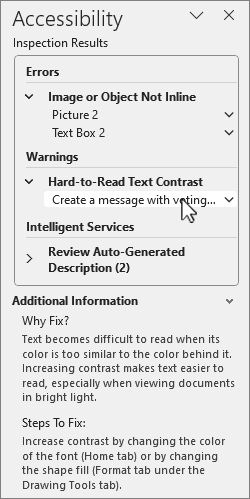
1. Select the Review tab. (In Outlook, you will only see the Review tab when writing or replying to messages.)
2. Select  Check Accessibility to open the Accessibility pane on the right. (For Word, Excel, and PowerPoint desktops, select the lower half of the Check Accessibility button for more options.)
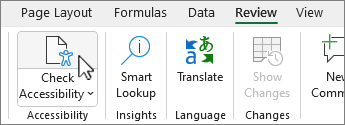
3. In the Accessibility pane, review and address the findings under Inspection Results.
Apply recommended actions
In the Accessibility pane, you'll see a list of errors and warnings, with how-to-fix recommendations for each.
To quickly correct the issues, apply one of the recommended actions.
1. In the Accessibility pane, select an issue under Warnings or Errors. The list will expand and show the items and objects affected by the issue. Select the item or object to view the exact location of the affected item or object.
2. To address the issue, select the down arrow button next to it and open the Recommended Actions list.
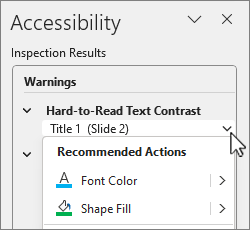
3. To apply a fix, select an action from the Recommended Actions list. To view more options, select the right arrow button next to the action (if available).
4. Go through and resolve each issue under Warnings and Errors.
Don't see the Accessibility Checker?
If you don't see Check Accessibility on the Review tab, you might have an older version of the app. Follow these steps to open the Accessibility Checker:
1. Select the File tab and choose Info.
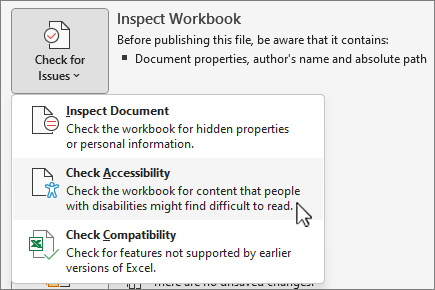
2. Select Check for Issues.
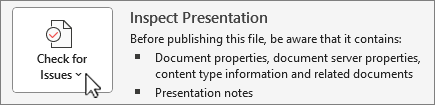
3. In the Check for Issues drop-down menu, select Check Accessibility.
4. The Accessibility Checker task pane will appear next to your content and show the inspection results.
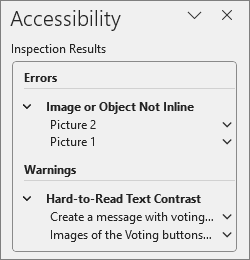
5. Select an issue under Inspection Results to see why and how to fix an issue. This info appears under Additional Information.