Alternative text (alt text) is descriptive text that conveys the meaning and context of a visual item in a digital setting, such as on an app or web page. When screen readers like Microsoft Narrator, JAWS, and NVDA encounter content with alt text, they read it aloud so people can better understand what is on the screen. Well-written, descriptive alt text reduces ambiguity and improves the overall user experience.

When to use alt text?
Images and pictures
Always convey an image's content and purpose concisely and unambiguously. The alt text should not be longer than a sentence or two; most of the time, a few thoughtfully selected words will do. Consider what is important about an image. For example, important context might be the setting, the emotions on people's faces, the colors, or the relative sizes.
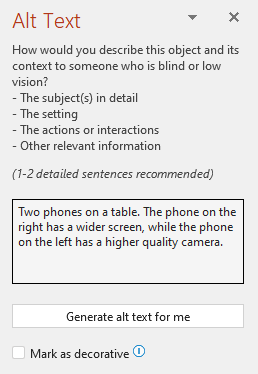
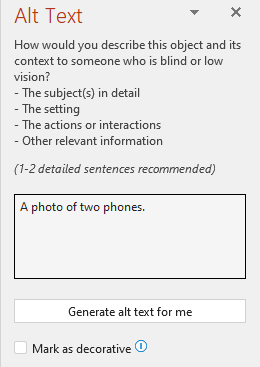
Do not repeat the surrounding textual content as alt text or use phrases referring to images, such as "a graphic of" or "an image of." In the example below, the alt text refers to the image but does not sufficiently describe its content.
Alt text can also be added as an argument to the IMAGE function , either by using text in quotes or using a cell reference that contains the text. For example, IMAGE("www.msstate.edu/logo.jpg", "MSU logo").
Diagrams, flow charts, and charts
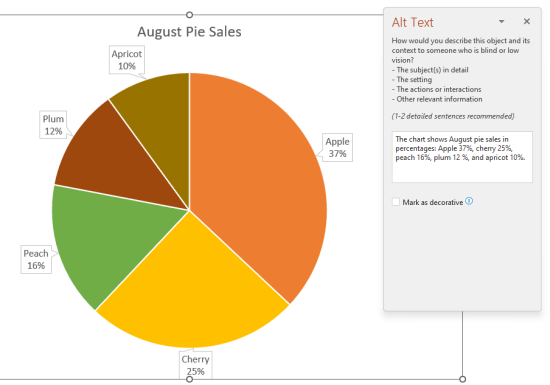
When dealing with objects that give detailed information, such as an infographic, use alt text to provide the information conveyed in the object. Describing a chart as ‘A bar chart showing sales over time,' for example, would not be useful to a blind person. Try to convey the insight; for example, ‘A bar chart showing sales over time. In July, sales for brand A surpassed sales for brand B and kept increasing throughout the year.' Alt text should also clearly describe the beginning point, progress, and conclusion of flow charts.
Videos
Videos that do not explain their content require alt text to describe the visual experience, even if the user hears music, background sounds, and speech. Alt text should describe the content and purpose of the video.
Ideally, a video should contain a second audio track with a description of the video elements that are purely visual and not accessible to people with a visual disability.
Tables
The Accessibility Checker does not flag a table that is missing alt text. However, it is always good practice to write a clear, descriptive, and concise alt text for a table.
When not to use alt text?
Decorative visual objects
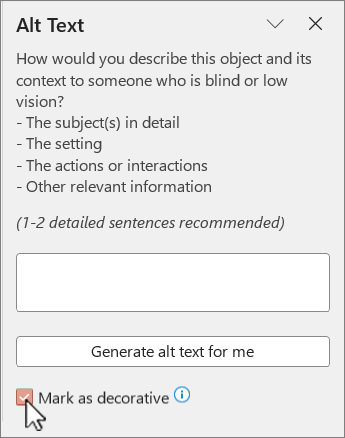
Decorative objects add visual interest but are not informative (for example, stylistic borders). People using screen readers hear these are decorative, so they know they aren't missing any important information. To mark a visual as decorative, select Mark as decorative in the Alt Text pane. The text entry field becomes grayed out. If you export your document as a PDF, any visuals you have marked as decorative are automatically tagged as artifacts. They are then ignored by screen readers when navigating through PDFs.
Slicers
If the Accessibility Checker does not flag an object when it is missing alt text, you do not have to write alt text for that object. A slicer is an example of such an object. Slicers provide buttons that you can click to filter tables or PivotTables in Excel.
Alt text tools in Microsoft 365
To help you with alt text, Microsoft 365 offers the Accessibility Checker to review relevant visual content for alt text and get suggestions on improving content accessibility, an automatic alt text generator, and a manual alt text editor.
Open the Microsoft 365 Accessibility Checker
1. On the Review tab, select Check Accessibility.
2. In the Accessibility Assistant pane, on the right, accessibility issues appear under category headings.
3. Select any flagged issues to view recommended actions.
Manually view and edit alt text or approve automatic alt text
1. Right-click an image, chart, or other object, and select View Alt Text.
(On the Review tab, you can select the Check Accessibility drop-down and choose Alt Text.)
2. In the Alt text pane on the right, edit or approve the displayed alt text (if automatically generated).
3. If the image does not need alt text, such as a border, select Mark as decorative.
Turn automatically generated alt text on or off
1. On the File tab, select Options and choose the Accessibility tab.
2. Check or uncheck the Enable the option to generate alt text using AI checkbox under Alt Text.